History
With the October 2026 release, Dataristix maintains a history of changes made in Core and all connected connector modules, allowing you to review who changed what and when, restore a previous configuration, undo or redo your most recent changes, and recover deleted items, including tasks and connector topics.
Enabling History Recording
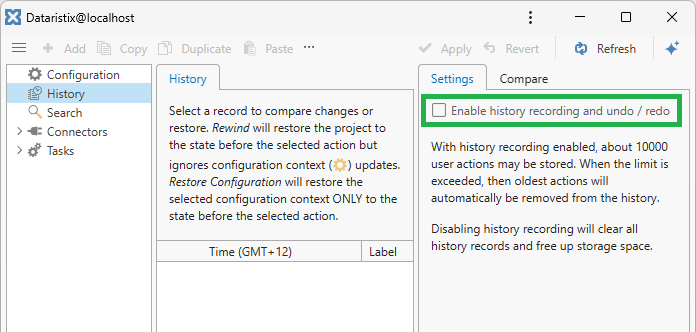
History recording is disabled by default. It can be enabled by selecting the root “History” navigation node, then selecting the “Settings” tab in the properties panel on the right, and checking the checkbox that controls history recording.
Important
Only users with the Administrator or Architect role can access the root “History” navigation node and enable or disable history recording.
Note
The same setting also controls Undo and Redo (see below). Disabling history recording disables Undo and Redo as well; they become available again once history recording is re-enabled.
When history recording is enabled, Dataristix first establishes a baseline snapshot of the current state of your project, so that future changes can always be compared and restored relative to a known starting point. Establishing the baseline may take a short while for larger projects; history and restore functionality become fully available once the baseline has been established.
History is retained automatically. Roughly the most recent 10,000 recorded changes are kept, with older entries removed to limit storage use: the exact count fluctuates over time and is periodically trimmed back down, rather than being pruned to an exact number after every single change. This automatic retention is not user-configurable.
Disabling History Recording
Similarly, history can be disabled by selecting the root “History” navigation node, then selecting the “Settings” tab in the properties panel on the right, and unchecking the checkbox that controls history recording.
Warning
Disabling history recording deletes all previously recorded history and frees up the storage space it used, after asking you to confirm. If you re-enable history recording later, it starts again from a new baseline; history recorded before it was disabled will not be available afterward.
Viewing History
Select the root “History” navigation node to see a single, combined history of all changes made in Core and in every connector module, listed in chronological order. Note that the User column remains blank unless user access control is enabled and users are required to sign in.
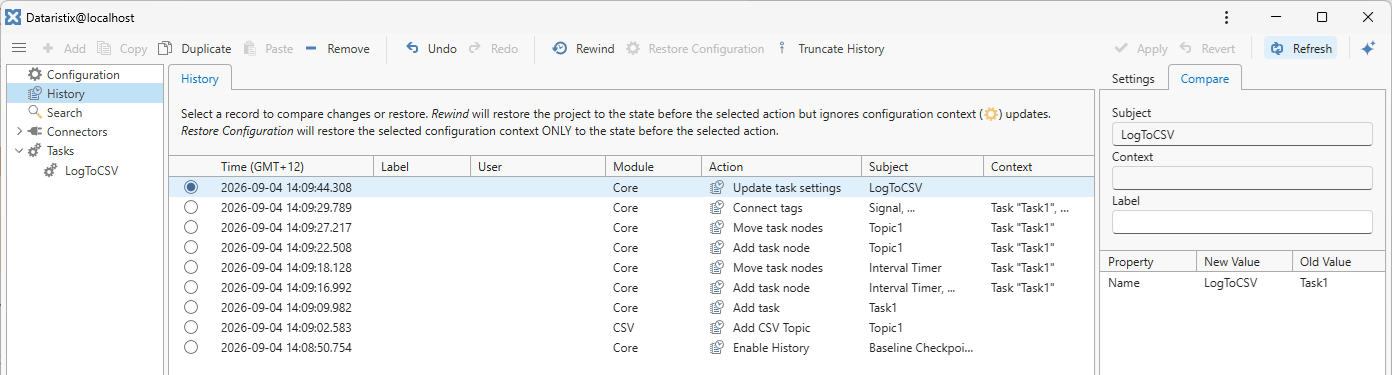
You can also view history scoped to a single task or connector topic.
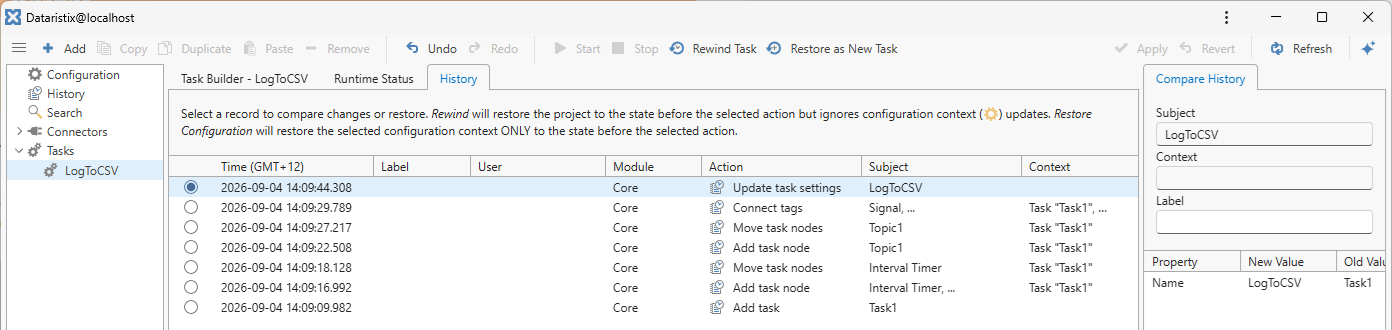
Select a Task, then select the “History” tab in the content panel to see the history for that task only:
Select a connector topic, then select the “History” tab in the content panel to see the history for that topic only:
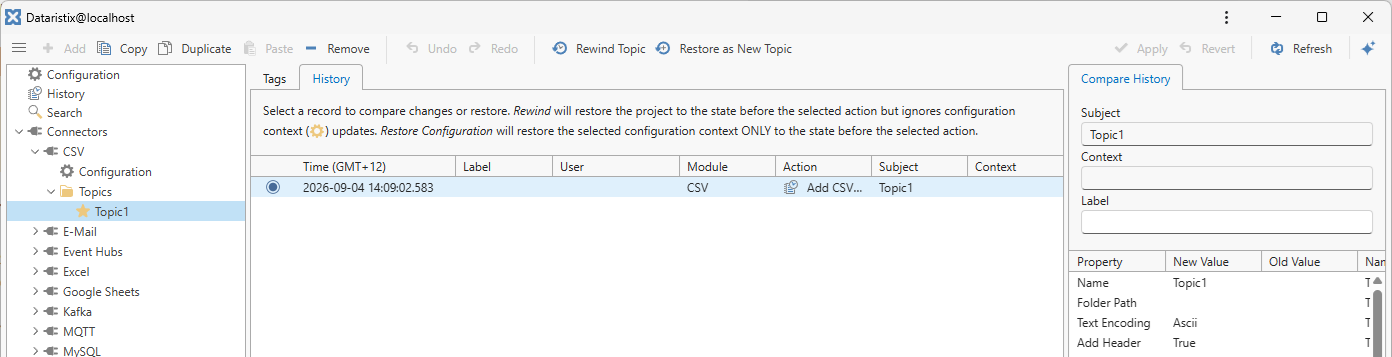
Only users with the Administrator or Architect role can see the connector topic history.
Note
Some configuration related history entries are flagged as restricted and are only visible, and can only be acted on, from the root “History” navigation node. They will not appear in a task’s or a topic’s own “History” tab.
Label a History Record
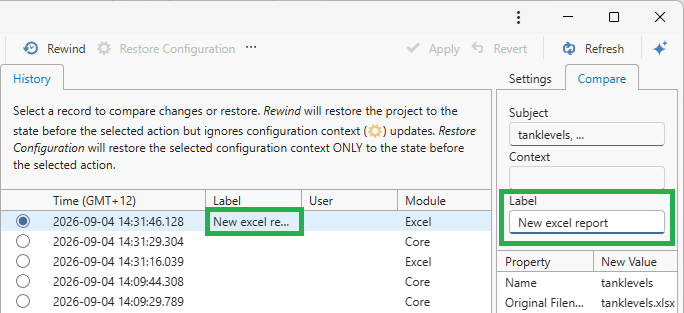
Select a history entry, from the root “History” navigation node or from a task’s or connector topic’s “History” tab, to give it a custom label for easier identification later. Enter the label in the properties panel on the right, then press “Apply” to commit the change.
Restoring and Rewinding
Select a history entry to see what changed in that specific action, as a table of old and new property values. The same selection also gives you access to the Restore as New, Rewind, and Restore Configuration actions. The actions available, and what each of them does, depend on whether you are working from the root “History” navigation node or from a task’s or connector topic’s own “History” tab, as described in the following sections.
Root History: Restore as New, Rewind, Restore Configuration
Important
Only users with the Administrator or Architect role can rewind or restore history across Core and connector modules.
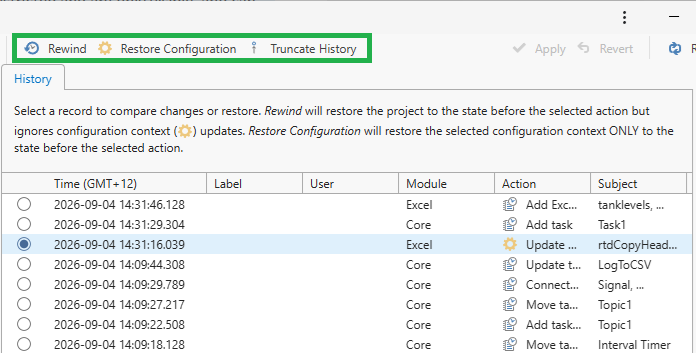
From the root “History” navigation node, select a history entry and choose:
- Restore as New to restore the task or connector topic that the selected entry targets as a new task or connector topic, created from its historic configuration, leaving the current one unchanged. This only works if the selected entry targets exactly one task or exactly one connector topic. Otherwise, for example if the entry affects several tasks at once, Restore as New fails with an error message. You can also restore a single task or connector topic as new from its own “History” tab, as described below.
- Rewind to restore the project to the state it was in before the selected entry. Rewind skips configuration-context changes (the restricted entries described above) and never overwrites your existing configuration; only non-configuration changes made after the baseline are undone.
- Restore Configuration to apply a single configuration-context change from history. This action is only available when the selected entry is a restricted, configuration-context entry. It takes effect immediately, may affect running operations, and you may need to re-enter credentials afterward. No further confirmation is shown once you accept the initial warning, so review the entry carefully before proceeding.
Example: You modify a task (action 1), then change an MQTT client configuration setting (action 2), then modify the task again (action 3). When you click on action 1 in the history and “Rewind”, then action 1 and action 3 are undone, but the MQTT client configuration as updated in action 2 remains. To revert the configuration change of action 2, select the single history record associated with the configuration change and “Restore Configuration”.
Restore as New, Rewind, and Restore Configuration ask you to confirm the action with the exact point in time, shown in your local timezone, before applying the change.
Note
To recover a task or connector topic that was deleted, find its deletion entry and choose either:
- Restore as New to recreate just that task or connector topic as a new one, leaving everything else unchanged. This works when the deletion entry targets a single task or connector topic, and
- Rewind to restore the project to the state before the deletion. The deleted item is recreated, but any other non-configuration changes made after that point are undone as well.
Task History: Restore as New and Rewind
From a task’s “History” tab, select a history entry to:
- Restore as New to create a new task from the historic configuration, leaving the current task unchanged, or
- Rewind the task in place to its state at that point in time.
Restoring a task as a new task, or rewinding it, can both require Dataristix to also update the connector topic the task is linked to, so that the topic still provides everything the historic task configuration needs. If so, you are shown a confirmation listing how many tasks are affected before the update proceeds.
Note
A task Restore as New or Rewind performed by an “Integrator” role account can be blocked: if the selected history entry also requires an update to a connected connector topic, applying it needs Administrator or Architect permission. In that case the action is refused, rather than being applied partially.
For example, suppose an Administrator or Architect removes a tag from a connector topic that a task uses, and the task’s tag connection point is removed as a result. An “Integrator” role account later tries to bring the task back to its earlier state:
- Restore as New would need the removed tag re-added to the connector topic, since the new task would still depend on that tag, and
- Rewind would need the same topic update.
Both actions are blocked with an error, because updating the connector topic itself requires Administrator or Architect permission. Only an Administrator or Architect account can complete either action in this situation.
Connector Topic History: Restore as New and Rewind
From a connector topic’s “History” tab, select a history entry to:
- Restore as New to create a new topic from the historic configuration, leaving the current topic unchanged, or
- Rewind the topic in place to its state at that point in time.
Note
Only users with the Administrator or Architect role can access connector topic history and its actions. Rewinding a topic may affect tasks that use the connector topic. If so, a warning is shown that tasks may be updated.
Truncating History
From the root “History” navigation node, select a history entry and choose Truncate History to permanently delete all history recorded before that point, independently of the automatic retention described above.
Warning
Truncating history is irreversible. Once truncated, entries before the selected point can no longer be viewed, compared, rewound, or restored.
Note
Truncating history does not free up storage space. It only deletes the history records themselves; the storage already allocated for them remains allocated and is simply made available again for new history records to fill as they are recorded, rather than growing further. To actually free up the space used by history, disable history recording, then enable it again to start recording from a fresh baseline, as described above.
Undo and Redo
In addition to browsing and restoring from the history log, Dataristix provides Undo and Redo for quick, incremental changes. Undo and Redo are scoped to your own user account and current session, and apply to your own most recent change; each further click steps back (or forward) through the changes before (or after) it.
Note
Rewind, Restore Configuration, and Truncate History, when performed from the root “History” navigation node, all clear your current session’s Undo and Redo stack (see below).
Important
Undo and Redo require history recording to be enabled. If history recording is disabled, Undo and Redo are unavailable.