Quick Start

Concepts

Dataristix consists of core application modules and additional modules, extending the core functionality.

Connectors

Connector modules “know” how to receive data from specific data sources and/or how to send data to specific data sinks. Most connectors can send and receive data making the data source readable and writable. Connectors that only know how to receive data connect to a read-only data source and connectors that only know how to write data connect to a write-only data sink. For example, the “OPC UA Connector” exchanges data with OPC UA servers and the “ODBC Connector” exchanges data with ODBC data sources and both are capable of reading and writing data. Connector Topics are configured to contain relevant data points. Depending on the connector’s capabilities, a connector topic may either function as an input Task Node, as an output Task Node, or as a Processor task node. Processor task nodes behave like callable functions. For example, the ODBC connector may allow calls to stored procedures returning a result.

Topics

Topics are collections of data points, also called “tags”. Each connector can have one or more Connector Topics, which you configure based on what the underlying data source or data sink supports. After configuration, these topics become available for use in Tasks. When topics are added to a task, then they become Task Nodes.

Many topics contain a fixed set of tags. Others are Generic or Generic Input topics:

  • Generic Topics
    These topics start out empty—they contain no predefined tags. When a Task Node references a Generic topic, you can connect any input tag to it. The Task Node automatically creates matching tags on the fly, using the same names as the connected input tags.
  • Generic Input Topics
    These are used specifically by Processor task nodes. Like Generic topics, the Task Node automatically creates input tags as needed. However, the output tags are not created dynamically; they are predefined by the processor itself.

Within the documentation, both types of generic topics are sometimes simply referred to as “Generic” to indicate that these accept any input tags.

Task Nodes

A task node is part of a Task. Task Nodes define how data flows through the task pipeline. A task node may reference a Connector Topic or built-in Core Input, Output or Processor topics. Built-in Core Inputs include, for example, the Interval Timer, Task Constants and others. Built-in Core Outputs include the Terminator and the Telemetry outputs. The same Connector Topic may be referenced by task nodes in one or more Tasks. Many different tasks may process the connector topic’s input data without placing additional burden on the connector’s data source.

Processors

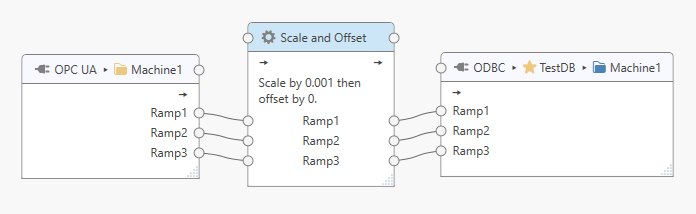
Processors are Task Nodes that take input data from input connector topics, Core inputs, or other processors, process it in some form, and forward processed or re-organized data to output connectors, Core Outputs, or other processors following their internal logic. For example, the “Scale and Offset Processor” can scale and offset tag values.

Tasks

Tasks consist of Task Nodes. When a task is started then data flows from configured input task nodes, across any configured Processor task nodes, to output task nodes. Connector topics that are referenced by Task Nodes connect to the underlying data source or data sink to retrieve or forward data accordingly when the task is running. Generally, a task should contain related topics that need to start and stop data processing together. Tasks can be exported and imported. Tasks are exported as partial projects containing all Core, Processor or Connector Topics referenced by the contained Task Nodes. However, task exports exclude Core or Connector configuration settings. When importing tasks, then only the connectors that were referenced by the tasks need to be present when the tasks are imported.

Project

A project is the collection of Core configuration settings, connector configuration settings, and all configured tasks and connector topics; it therefore defines the entire data flow. Projects can be exported and imported. When importing projects, then all connectors that were present when the project was exported also need to present when the project is imported.

Create a task

The Dataristix main application is used to configure connectors, processors and tasks. The following is a brief introduction to task configuration. You can find detailed information in subsequent chapters.

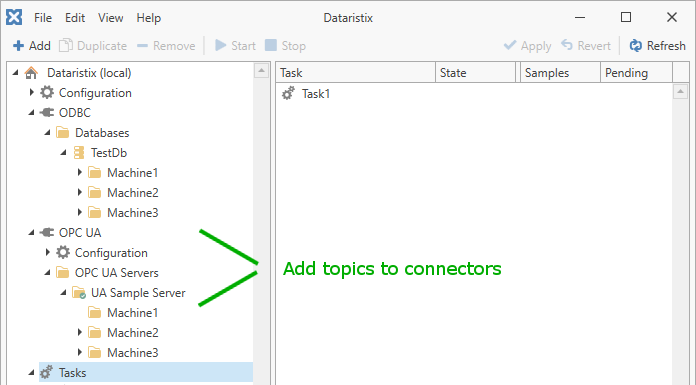
( 1 ) Configure topics for each connector according to the capabilities of the underlying data source. These topics will then become available for tasks.
../_images/concepts-ui.png

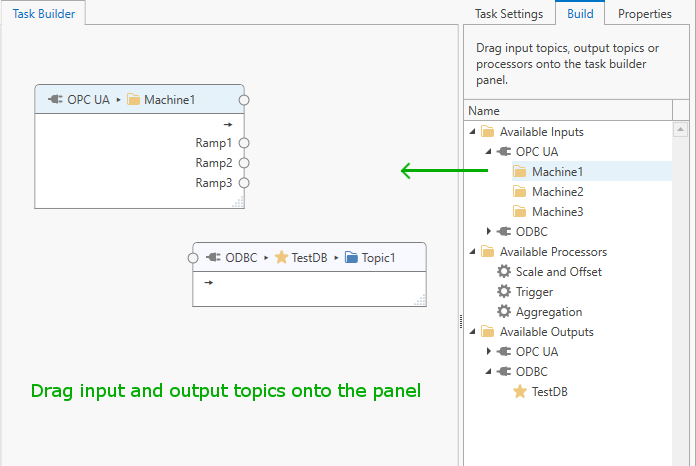
( 2 ) Select “Tasks” and press the “Add” button to add a task. The “Task Builder” panel is shown for the selected task. Drag relevant connector topics from the “Build” panel onto the “Task Builder” panel where they become Task nodes. A task can process one or more topic(s) at the same time.
../_images/concepts-ui-task1.png

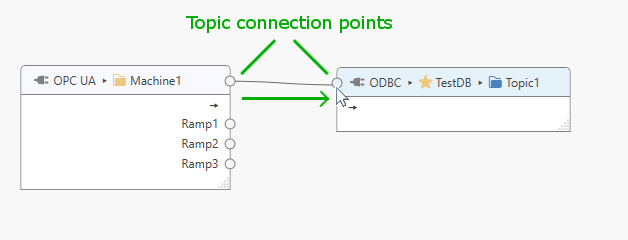
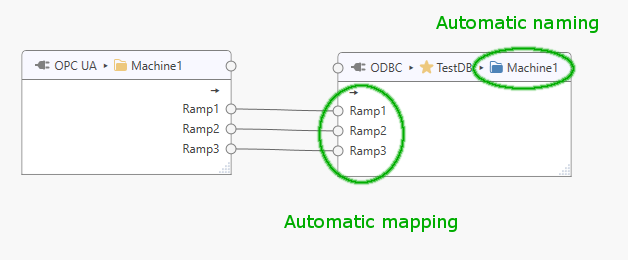
( 3 ) Map input tags to output tags. For “Generic” topics (like the one in the example), you can connect all tags within a topic at once by dragging the input topic connection point to the output topic connection point as shown below; this will generate tag mappings and automatically assigns a final destination name (this is initially the same as the generic topic name but can be renamed later).
../_images/concepts-ui-task2.png ../_images/concepts-ui-task3.png

( 4 ) If required, then processors can be added to the task. Processors map or transform data coming from the input stage so that inputs can be forwarded in a suitable form to the output stage. Connect tags by dragging topic or tag connection points to and from processors.
../_images/concepts-ui-task4.png

The task is now ready to transfer data from inputs to outputs. Please see the next chapter for more information about task configuration.

Tip

To quickly search for a connector topic:

  • Right-click on the “Connectors” navigation tree node and select “Go to Topic”.

To quickly move from a connector topic to an associated task:

  • Right-click on the connector topic and select “Go to task”.

To quickly move from a task to an associated connector topic:

  • Click on a task in the navigation tree, then right-click on a connector task node within the task builder panel and select “Go to topic”.