Topics
Add Topics
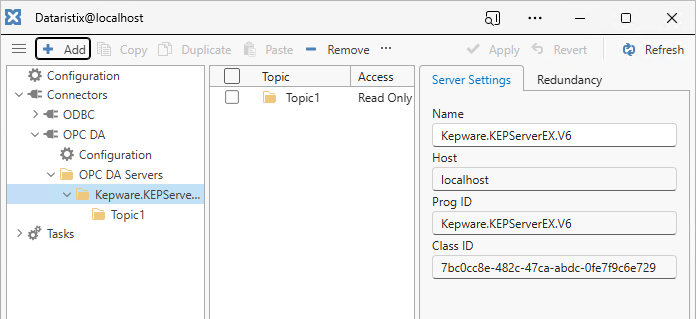
To add topics, click the “Add” button with the OPC DA Server selected in the main application’s navigation panel. A topic with a default name and settings will be created.
Topic Settings
Click on a topic in the navigation panel to view topic settings.
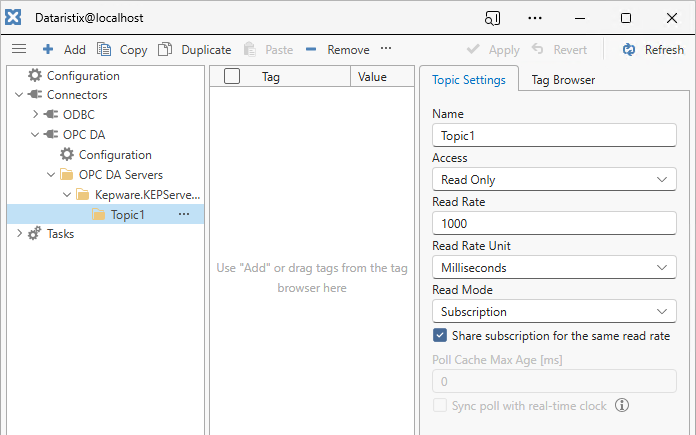
For each topic you can configure:
- Name
- The topic’s name.
- Access
- How the topic should be accessed, either “Read Only”, “Read and Write”, or “Write Only”. If Read Only then Dataristix will allow use of the topic as task input only. If Write Only then Dataristix will allow use of the topic as task output only. If Read and Write then the topic can be used in inputs as well as in outputs. Note that this access mode is not related to the underlying OPC DA Server tag access level; for example, a topic that is configured as writable (Read and Write or Write Only) cannot write to OPC DA tags if the OPC DA Server does not allow writing to the tags. Two additional access modes, “Process Write” and “Process Read”, turn the topic into a processor within the task builder; see “Process” Access below.
For readable topics:
- Read rate
- The requested refresh rate for tag data in units of “Read Rate Unit” (see below).
- Read Rate Unit
- The unit for “Read rate”, either milliseconds, seconds, minutes or hours.
- Read mode
- Either “Subscription” or “Poll”. In Subscription mode the data is acquired by subscribing to OPC server data change events for the specified read rate; this is the most efficient form of data acquisition. In Poll mode data is read directly from the OPC server at the specified read rate.
Subscription mode options:
- Share subscription for the same read rate
- This options is enabled by default. When checked, then all topics with the same read rate use the same OPC DA server subscription, which lowers the number of messages exchanged with the OPC DA server. When unchecked, then the topic is placed into its own subscription.
Poll mode options:
- Poll Cache Max Age [ms]
- When data is read from the OPC DA server then this setting determines how “fresh” the data should be. A max age of zero means that the OPC server needs to read the data from the device; a higher max age value allows the OPC server to possibly satisfy requests using cached values if the cached value is not older than max age.
- Sync poll with real-time clock
- If the read rate unit is Minute or Hour then the option to synchronize data requests with the real-time clock is available. If the read rate unit is Minute then reads occur on full minutes and if the read rate unit is Hour then reads occur on full hours.
For writable topics the following options are available.
- Convert to target type before writing values
- Tick this option to convert incoming values to the OPC DA tag’s target data type before writing, rather than writing values as received.
- Write uncertain tag values
- By default, only values of ‘good’ status are written to the OPC DA server. For example, if the input and output connectors of a task are both OPC DA connectors and the input connector sends data with an ‘uncertain’ status then the value is not written to the output OPC DA connector. Tick this option to also write ‘uncertain’ values. Values with a ‘bad’ status are never written.
- Write tag status
- Tick this option to write the status of each incoming value to the OPC DA tag, where supported by the OPC DA server.
- Write tag timestamps
- Tick this option to write the timestamp of each incoming value to the OPC DA tag, where supported by the OPC DA server.
“Process” Access
Available in the October 2026 release of Dataristix and later, topics support two “process” access modes in addition to the read and write access modes: “Process Write” and “Process Read”. A process topic is not used as a task input or task output; instead, it appears as a processor within the task builder. The processor receives values, accesses the OPC DA server and, once the server access has completed successfully, passes values on to the next task nodes. Subsequent task logic, for example a handshake with a control program, therefore only runs after values were actually written to or read from the OPC DA server.
Process topics are never subscribed to or polled. The OPC DA server is only accessed when the processor receives values in a running task, so live values are unavailable for process topics and the read settings do not apply.
When a task starts, the processor’s inputs and outputs are matched to topic tags by name. Tag names within a process topic must therefore be unique (names are case-sensitive); changes that would result in duplicate tag names are refused.
If the OPC DA server access fails then an error is logged, the task enters the “Interrupted” state, and the values are sent to the connector again for retry, as described in Start Tasks. To avoid retries, tick “Do not retry failed writes” (Process Write) or “Do not retry failed reads” (Process Read); failed values are then not sent again and task logic should be used to handle failures.
The same process topic may be added to a task more than once. Each processor works independently of the others.
“Process Write” Access
With “Process Write” access, the topic’s tags are the processor’s inputs and, with the same names, its outputs.
- Values are written as a complete set
- Whenever the processor receives values, all tags of the topic that are used in the task are written together in a single write request. Tags that did not receive a new value are written with their most recently received value. Until each tag has received a value at least once, nothing is written and a warning is logged; writing resumes as soon as all input values are available.
- Written values are passed on
- After a successful write, the complete set of written values is passed on as the processor’s outputs. The values keep their value, timestamp and status as received. Outputs are sent after every successful write, even if the values did not change.
- Write settings apply
- The write settings described in “Topic Settings” above apply to process write topics as they do to writable topics. By default, only values of ‘good’ status are written; tick “Write uncertain tag values” to also write ‘uncertain’ values. If a received value has a status that cannot be written (for example, a ‘bad’ value) then no values are written, an error is logged, and the values are not retried since a retry cannot succeed.
- Do not retry failed writes
- If ticked, then failed writes are not retried.
“Process Read” Access
With “Process Read” access, the topic receives a trigger input and the topic’s tags are the processor’s outputs.
- Trigger input
- When the access mode is changed to “Process Read” then a trigger tag named “Trigger” is added to the topic (or “_Trigger”, “Trigger1”, “Trigger2” and so on, if a tag with that name already exists). The trigger tag is the processor’s only input. It is not shown in the topic’s tag list and cannot be renamed or removed; it is removed automatically when the access mode is changed to a different mode.
- Values are read on trigger
- Any value received on the trigger input, whatever its value or status, reads all tags of the topic from the OPC DA server with a maximum age of zero, i.e. the OPC DA server is asked to read the values from the device rather than returning cached values.
- Read values are passed on
- Once all tags have been read successfully with ‘good’ quality, the values read are passed on as the processor’s outputs. If any tag is read with a quality other than ‘good’ (i.e. ‘uncertain’ or ‘bad’) then no values are passed on and the read counts as failed.
- Do not retry failed reads
- If ticked, then failed reads are not retried.
Examples
Process topics are useful to transfer data to or from a control program in a controlled manner. For a recipe transfer that writes the recipe with a “Process Write” topic and confirms the transfer to the control program with a handshake, see the example of the “Handshake” processor.
A “Process Read” topic can be used to collect data from the control program on request: connect a tag that the control program sets when data are ready (for example, at the end of a batch) to the trigger input, and send the values read, for example, to a database.
Monitor Topics
Enable “Live Values” in the main application’s “View” menu to monitor the topic’s tag values. Live values are acquired according to the topic settings, (i.e. update rate) and are unavailable for Write-Only and process topics.
Remove Topics
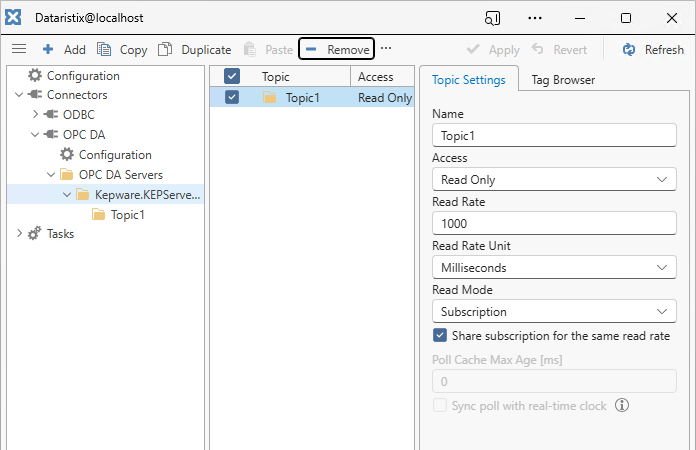
Remove topics by selecting the OPC DA Server in the navigation panel, then select one or more topics to remove in the content panel, and finally click on the “Remove” toolbar button to remove selected topics.
Warning
Note that topics are also removed from any task using the topics.